


Tim Dexter

Learn why Publisher in Oracle Analytics Cloud now makes most sense for your business documents
Greetings to you all !!
As most of you must be aware by now, Oracle has embarked its Analytics offering under a single brand - Oracle Analytics, consolidating a variety of offerings into three key offerings:
You can get more insight to these offerings in this blog article titled "Welcome to a new Era of Analytics" by Michael Singer and also at Oracle Analytics website. Oracle has taken a big leap in defining the next wave in business analytics boosted by AI, Augmented Analytics, NLP, while continuing to modernize the core strength of enterprise reporting. Oracle has recently been named a Leader by Forrester Wave. You can find the details here in the article by John Haggerty. And if you like to know how Oracle Analytics is placed against its competitors, then please check this comparison link.
So what is happening with BI Publisher? As you all know BI Publisher has been part of Oracle Analytics Cloud Enterprise Edition version 4.0 onward. With recent re-branding exercise, BI Publisher will be available as Oracle Analytics Publisher.
So why Oracle Analytics Publisher in OAC makes most sense for your enterprise for your business documents?
Well, when it comes to creating pixel perfect reports, invoices, purchase orders, shipping labels, collateral, etc. for your enterprise, Oracle Analytics Publisher has had an excellence all these years. Now it brings additional benefits for you on the cloud that makes it the right choice for all your business documents:
- No Upfront Infrastructure Cost: This is no-brainer, a big reason why you want to switch your application to cloud is because you can just get started with no investment for server infrastructure. This stands out in case of enterprise reporting because many a times the size of data and report is extremely large and there is a huge infrastructure cost to process such large reports using high performing servers.
- Simplified pricing models: You can pick from a simplified pricing model that works for your enterprise - Per Named User basis or OCPU per hour usage basis (Pay as you go & Universal Credits Monthly Flex) for both New User Subscription and BYOL subscription. You can find out the details here.
- Scale Up/Scale Down on Demand: Many reports see a spike in usage during month ends, quarter ends, year ends etc (such as reports uploaded by dealerships, combined monthly or yearly statements, tax statements etc.). Now you can scale up/down on demand and only pay by usage. To plan your service, check for the processing limits by compute shape here.
- High Availability: All Oracle Cloud Infrastructure environments are built with high availability architecture to provide zero down time and also ensures complete data backup and recovery.
- Data Security: Data Security is paramount on Cloud and therefore, data sources and delivery channels are secured with SSL enablement.
- Patching & Upgrade: For Oracle Cloud Infrastructure (OCI) and Oracle Managed OCI-Classic, Oracle manages your cloud environments that includes patching and upgrade, thereby taking away all the worry of frequent patching and upgrade and allowing customer to focus on its business.
- Integrated with other components in Analytics Cloud: Publisher in OAC can leverage Self Service Data Sources (DV Data sets and data flows), Subject Areas, Semantic Layer data sources etc. You can connect to over 40 data sources that includes several cloud based data sources and Big Data Sources. You can even directly connect to Semantic Layer using BIJDBC, BI Analysis and OAC Esssbase.
- Application Integration Options: You can use REST APIs to integrate reports in your application. The Publisher REST API information can be found here for now. The REST API for Scheduled Jobs will be available soon with the next release that would include Normal and Bursting Jobs.
- Easy to Migrate reports from On-prem: You can migrate reports from your on-premise environment (11g or 12c) to OAC using snapshots. You can find the details here.
- Connect to On-Prem Data: In OCI-Classic, one can connect to on-prem data sources by use of VPN. In OCI, You can leverage the OAC data sources (data sets and data flows) from Publisher Data model to connect to on-prem data sources. OAC data connections in turn can use Data Gateway/Remote Data Connector (RDC v1). Although this would mean extra effort to update to your existing data models and also there can be limitations. There are ongoing efforts to improve this ability for OCI, till that time you can plan to stay on OCI-Classic if you have many reports to connect to on-prem data source.
- Ease of Managing Reports: With several new features to help with self service ability, you will find authoring and managing reports much easier. You can upload custom fonts, SSL certificates, Public Keys, digital certificates and apply them in few clicks.You can enable Audit to log user activities, define mandatory parameters to impede run-away report executions, compress output before sending through delivery channels and many more such new features. You can check the new features list here.
So, if you have not tried yet, or are using BI Publisher in your On-Prem environment, you can quickly create a trial account and get started. You can migrate your reports from on-prem These reports can be your production reports, operation reports, financial statements, Invoices, Purchase Orders, Bill Of Material, Shipping Labels, Collaterals or any business document.
Have a great day !!
Connect to DV Datasets and explore many more new features in OAC / OAAC 18.3.3.0
Greetings !
Oracle Analytics Cloud (OAC) and Oracle Autonomous Analytics Cloud (OAAC) version 18.3.3.0 (also known as V5) got released last month. A rich set of new features have been introduced in this release across different products (with product version 12.2.5.0.0) in the suite. You can check all the new features of OAC / OAAC in the video here.
The focus for BI Publisher on OAC / OAAC in this release has been to compliment Data Visualization for pixel perfect reporting, performance optimizations and adding self service abilities. Here is a list of new features added this release:
BI Publisher New Features in OAC V5.0
New Feature Description 1. DV DatasetsNow you can leverage a variety of data sources covered by Data Visualization data sets, including Cloud based data sources such as Amazon Redshift, Autonomous Data Warehouse Cloud; Big Data sources such as Spark, Impala, Hive; and Application data sources such as Salesforce, Oracle Applications etc. BI Publisher is here to compliment DV to create pixel perfect reports using DV datasets.
Check the documentation for additional details. Also, check this video to see how this feature works.
2. Upload CenterNow upload all files for custom configuration such as fonts, ICC Profile, Private Keys, Digital Signature etc.from the Upload Center as a self service feature available in the Administration page.
Additional details can be found in the documentation here.
3. Validate Data ModelReport Authors can now validate a data model before deploying the report in a production environment. This will help during a custom data model creation where data sets, LOVs and Bursting Queries can be validated against standard guidelines to avoid any undesired performance impact to the report server.
Details available here.
4. Skip unused data setsWhen a data model contains multiple data sets for different layouts, each layout might not use all the data sets defined in the data model. Now Report Authors can select data model property to skip the execution of the unused data sets in a layout. Setting this property reduces the data extraction time, memory usage and improves overall report performance.
Additional details can be found here.
5. Apply Digital Signature to PDF DocumentsDigital Signature is widely used feature in on-prem deployments and now this has been added in OAC too, where in Digital Signature can be applied to a PDF output. Digital Signatures can be uploaded from the Upload Center, required signature can be selected under security center, and then applied to PDF outputs by configuring attributes under report properties or run-time properties.
You can find the documentation here. Also check this video for a quick demonstration.
6. Password protect MS Office Outputs - DocX, PPTX, XLSXNow protect your MS Office output files with a password defined at report or server level.
Check the PPTX output properties, DocX output properties, Excel 2007 output properties.
7. Deliver reports in compressed formatYou can select this option to compress the output by including the file in a zip file before delivery via email, FTP, etc.
Additional details can be found here.
8. Request read-receipt and delivery confirmation notificationYou can opt to get delivery and read-receipt notification for scheduled job delivery via email.
Check documentation for additional details.
9. Add scalability mode for Excel Template to handle large data sizeNow you can set up scalability mode for an excel template. This can be done at system level, report level or at template level. By setting this attribute to true, the engine will flush memory after a threshold value and when the data exceeds 65K rows it will rollover data into multiple sheets.
You can find the documentation here.
Stay tuned to hear more updates on features and functionalities ! Happy BIP'ing ...
When Screen Scraping became API calling – Gathering Oracle OpenWorld Session Catalog with ...

A dataset with all sessions of the upcoming Oracle OpenWorld 2017 conference is nice to have – for experiments and demonstrations with many technologies. The session catalog is exposed at a website here.
With searching, filtering and scrolling, all available sessions can be inspected. If data is available in a browser, it can be retrieved programmatically and persisted locally in for example a JSON document. A typical approach for this is web scraping: having a server side program act like a browser, retrieve the HTML from the web site and query the data from the response. This process is described for example in this article – https://codeburst.io/an-introduction-to-web-scraping-with-node-js-1045b55c63f7 – for Node and the Cheerio library.
However, server side screen scraping of HTML will only be successful when the HTML is static. Dynamic HTML is constructed in the browser by executing JavaScript code that manipulates the browser DOM. If that is the mechanism behind a web site, server side scraping is at the very least considerably more complex (as it requires the server to emulate a modern web browser to a large degree). Selenium has been used in such cases – to provide a server side, programmatically accessible browser engine. Alternatively, screen scraping can also be performed inside the browser itself – as is supported for example by the Getsy library.
As you will find in this article – when server side scraping fails, client side scraping may be a much to complex solution. It is very well possible that the rich client web application is using a REST API that provides the data as a JSON document. An API that our server side program can also easily leverage. That turned out the case for the OOW 2017 website – so instead of complex HTML parsing and server side or even client side scraping, the challenge at hand resolves to nothing more than a little bit of REST calling. Read the complete article here.
For regular information on business process management and integration become a member in the SOA & BPM Partner Community for registration please visit www.oracle.com/goto/emea/soa (OPN account required) If you need support with your account please contact the Oracle Partner Business Center.
 Blog
Blog  Twitter
  LinkedIn
 ![image[7][2][2][2]](https://soacommunity.files.wordpress.com/2013/04/image7222.png?w=20&h=20&h=20 "image[7][2][2][2]") Facebook
Facebook ![clip_image002[8][4][2][2][2]](https://soacommunity.files.wordpress.com/2013/04/clip_image00284222.jpg?w=26&h=23&h=23 "clip_image002[8][4][2][2][2]") Wiki
Wiki
Technorati Tags: SOA Community,Oracle SOA,Oracle BPM,OPN,Jürgen Kress
Solve digital transformation challenges using Oracle Cloud
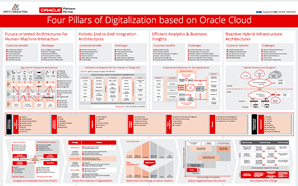
Digital transformation is an omnipresent topic today, providing a lot of challenges as well as chances. Due to that, customers are asking about how to deal with those challenges and how to leverage from the provided chances. Frequently asked questions in this area are:
- How can we modernize existing applications?
- What are the key elements for a future-proven strategy IT system architecture?
- How can the flexibility as well as the agility of the IT system landscape be ensured?
But from our experience there’s no common answer for these questions, since every customer has individual requirements and businesses, but it is necessary to find pragmatic solutions, which leverage from existing best Practices – it is not necessary to completely re-invent the wheel.
With our new poster „Four Pillars of Digitalization based on Oracle Cloud“ (Download it here) , we try to deliver a set of harmonized reference models which we evolved based on our practical experience, while conceiving modern, future-oriented solutions in the area of modern application designs, integrative architectures, modern infrastructure solutions and analytical architectures. The guiding principle, which is the basis for our architectural thoughts is: Design for Change. If you want to learn more, you can refer to our corresponding Ebook (find the Ebook here, only available in German at the moment).
Usually the technological base for modern application architectures today is based on Cloud services, where the offerings of different vendors are constantly growing. Here it is important to know which Cloud services are the right ones to implement a specific use case. Our poster „Four Pillars of Digitalization based on Oracle Cloud“ shows the respective Cloud services of our strategic partner Oracle, which can be used to address specific challenges in the area of digitalization. Get the poster here.
For regular information become a member in the Developer Partner Community please visit: http://www.oracle.com/partners/goto/wls-emea ( OPN account required). If you need support with your account please contact the Oracle Partner Business Center.
Blog
Twitter
LinkedIn
Forum
Wiki
Technorati Tags: PaaS,Cloud,Middleware Update,WebLogic, WebLogic Community,Oracle,OPN,Jürgen Kress
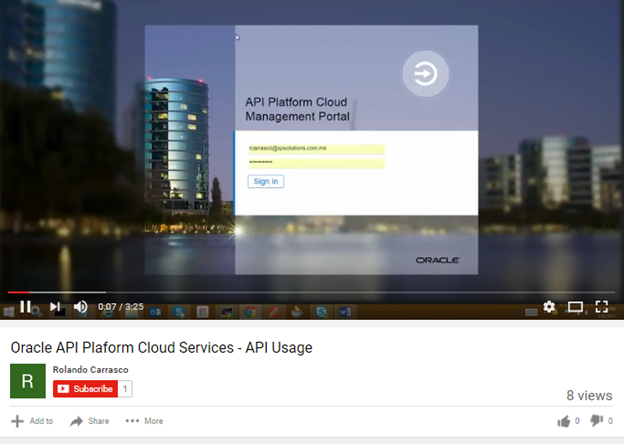
Oracle API Platform Cloud Service Overview by Rolando Carrasco
For regular information on business process management and integration become a member in the SOA & BPM Partner Community for registration please visit www.oracle.com/goto/emea/soa (OPN account required) If you need support with your account please contact the Oracle Partner Business Center.
Blog Twitter LinkedIn Facebook Wiki
Technorati Tags: SOA Community,Oracle SOA,Oracle BPM,OPN,Jürgen Kress
Why are Universal Cloud Credit and Bring Your Own License a great opportunity for Oracle Partners?

Oracle simplified buying and consuming for PaaS and IaaS Cloud. Customer can purchase now Universal Cloud Credits. This universal cloud credits can be spend for any IaaS or PaaS service. Partners can start a PoC or project e.g. with Application Container Cloud Service and can add additional service when required e.g. Chabot Cloud Service. The customer can use the universal cloud credits for any available or even upcoming IaaS and PaaS services.
Thousands of customers use Oracle Fusion Middleware and Databases today. With Bring Your Own License they can move easy workload to the cloud. As they already own the license the customer needs to pay only a small uplift for the service portion of PaaS. This is a major opportunity for Oracle partners to offer services to this customers.
To learn more about Universal Cloud Credits and Bring Your Own License Attend the free on-demand training here
For regular information become a member in the Developer Partner Community please visit: http://www.oracle.com/partners/goto/wls-emea ( OPN account required). If you need support with your account please contact the Oracle Partner Business Center.
Blog
Twitter
LinkedIn
Forum
Wiki
Technorati Tags: PaaS,Cloud,Middleware Update,WebLogic, WebLogic Community,Oracle,OPN,Jürgen Kress
Event Hub Cloud Service. Hello world
In early days, I've wrote a blog about Oracle Reference Architecture and concept of Schema on Read and Schema on Write. Schema on Read is well suitable for Data Lake, which may ingest any data as it is, without any transformation and preserve it for a long period of time.
At the same time you have two types of data - Streaming Data and Batch. Batch could be log files, RDBMS archives. Streaming data could be IoT, Sensors, Golden Gate replication logs.
Apache Kafka is very popular engine for acquiring streaming data. It has multiple advantages, like scalability, fault tolerance and high throughput. Unfortunately, Kafka is hard to manage. Fortunately, Cloud simplifies many routine operations. Oracle Has three options for deploy Kafka in the Cloud:
1) Use Big Data Cloud Service, where you get full Cloudera cluster and there you could deploy Apache Kafka as part of CDH.
2) Event Hub Cloud Service Dedicated. Here you have to specify server shapes and some other parameters, but rest done by Cloud automagically.
3) Event Hub Cloud Service. This service is fully managed by Oracle, you even don't need to specify any compute shapes or so. Only one thing to do is tell for how long you need to store data in this topic and tell how many partitions do you need (partitions = performance).
Today, I'm going to tell you about last option, which is fully managed cloud service.
It's really easy to provision it, just need to login into your Cloud account and choose "Event Hub" Cloud service.

after this go and choose open service console:

Next, click on "Create service":

Put some parameters - two key is Retention period and Number of partitions. First defines for how long will you store messages, second defines performance for read and write operations.

Click next after:

Confirm and wait a while (usually not more than few minutes):

after a short while, you will be able to see provisioned service:

Hello world flow.
Today I want to show "Hello world" flow. How to produce (write) and consume (read) message from Event Hub Cloud Service.
The flow is (step by step):
1) Obtain OAuth token
2) Produce message to a topic
3) Create consumer group
4) Subscribe to topic
5) Consume message
Now I'm going to show it in some details.
OAuth and Authentication token (Step 1)
For dealing with Event Hub Cloud Service you have to be familiar with concept of OAuth and OpenID. If you are not familiar, you could watch the short video or go through this step by step tutorial.
In couple words OAuth token authorization (tells what I could access) method to restrict access to some resources.

One of the main idea is decouple Uses (real human - Resource Owner) and Application (Client). Real man knows login and password, but Client (Application) will not use it every time when need to reach Resource Server (which has some info or content). Instead of this, Application will get once a Authorization token and will use it for working with Resource Server. This is brief, here you may find more detailed explanation what is OAuth.

Obtain Token for Event Hub Cloud Service client.
As you could understand for get acsess to Resource Server (read as Event Hub messages) you need to obtain authorization token from Authorization Server (read as IDCS). Here, I'd like to show step by step flow how to obtain this token. I will start from the end and will show the command (REST call), which you have to run to get token:
as you can see there are many parameters required for obtain OAuth token.
Let's take a looks there you may get it. Go to the service and click on topic which you want to work with, there you will find IDCS Application, click on it:

After clicking on it, you will go be redirected to IDCS Application page. Most of the credentials you could find here. Click on Configuration:

On this page right away you will find ClientID and Client Secret (think of it like login and password):

look down and find point, called Resources:
 Click on it
 and you will find another two variables, which you need for OAuth token - Scope and Primary Audience.
One more required parameter - IDCS_URL, you may find in your browser:

you have almost everything you need, except login and password. Here implies oracle cloud login and password (it what you are using when login into http://myservices.us.oraclecloud.com):

Now you have all required credential and you are ready to write some script, which will automate all this stuff:
after running this script, you will have new file called access_token.json. Field access_token it's what you need:
Create Linux variable for it:
Well, now we have Authorization token and may work with our Resource Server (Event Hub Cloud Service).
Note: you also may check documentation about how to obtain OAuth token.
Produce Messages (Write data) to Kafka (Step 2)
The first thing that we may want to do is produce messages (write data to a Kafka cluster). To make scripting easier, it's also better to use some environment variables for common resources. For this example, I'd recommend to parametrize topic's end point, topic name, type of content to be accepted and content type. Content type is completely up to developer, but you have to consume (read) the same format as you produce(write). The key parameter to define is REST endpoint. Go to PSM, click on topic name and copy everything till "restproxy":

Also, you will need topic name, which you could take from the same window:

now we could write a simple script for produce one message to Kafka:
if everything will be fine, Linux console will return something like:
Create Consumer Group (Step 3)
The first step to read data from OEHCS is create consumer group. We will reuse environment variables from previous step, but just in case I'll include it in this script:
this script will generate output file, which will contain variables, that we will need to consume messages.
Subscribe to a topic (Step 4)
Now you are ready to subscribe for this topic (export environment variable if you didn't do this before):
If everything fine, this request will not return something.
Consume (Read) messages (Step 5)
Finally, we approach last step - consuming messages.
and again, it's quite simple curl request:
if everything works, like it supposed to work, you will have output like:
Conclusion
Today we saw how easy to create fully managed Kafka Topic in Event Hub Cloud Service and also we made a first steps into it - write and read message. Kafka is really popular message bus engine, but it's hard to manage. Cloud simplifies this and allow customers concentrate on the development of their applications.
here I also want to give some useful links:
1) If you are not familiar with REST API, I'd recommend you to go through this blog
2) There is online tool, which helps to validate your curl requests
3) Here you could find some useful examples of producing and consuming messages
4) If you are not familiar with OAuth, here is nice tutorial, which show end to end example
Why Now Is the Time for ERP in the Cloud
“The movement to cloud is an inevitable destination; this is how computing will evolve over the next several years.” So said Oracle CEO Mark Hurd at Oracle OpenWorld 2017. Based on the results of new research, that inevitability is here, now.
In our first ERP Trends Report, we surveyed more than 400 finance and IT leaders. We found that 76% of respondents said they either have plans for ERP in the cloud or have made the move already. They are recognizing that waiting puts them at a disadvantage; the time to make the move is now.
The majority of respondents cited economic factors as the reason they made the leap, and it’s easy to see why: Nucleus Research recently published a report that cloud delivers 3.2x the return on investment (ROI) of on-premises systems, while the total cost of ownership (TCO) is 52% lower.

But even more surprising were the benefits realized once our survey respondents got to the cloud. An astonishing 81% cited “Staying current on technology” as the main benefit of moving to cloud ERP. With a regular cadence of innovation delivered by the cloud, it is easier for companies to quickly incorporate game-changing technologies into everyday business processes—technologies like artificial intelligence, machine learning, the Internet of Things (IoT), blockchain and more. In the cloud, the risk of running their businesses on obsolete technology drops to zero. It’s the last upgrade they will ever need.
“One of the key value propositions in engaging with Oracle and implementing the cloud solutions has been the value of keeping current with technology and technological developments,” said Mick Murray, CFO of Blue Shield of California. “In addition to robotics, we’re looking at machine learning and artificial intelligence, and how do we apply that across the enterprise.”
As new capabilities are rolled out, cloud subscribers like Blue Shield can take advantage of them immediately. This gives them the agility to be both responsive and predictive. Uncertainty is the new normal in business and managing amid uncertainty is a must. It’s no longer enough to be quick-to-change; competitive companies must also have reliable insight into how potential future scenarios could impact performance.
So, what does that mean in terms of daily operations? Basically, it means people using knowledge to make good decisions in a fast, productive, and highly automated manner at all levels of the business. Cloud systems provide the data integration and ongoing technology refresh to incorporate best practices and technology advances.
The cloud also makes it easier to integrate external sources of valuable, contextual knowledge that helps improve the accuracy of data models. This is important considering the scope of threats to sustainable operations for businesses with large, global footprints. Political, environmental, and economic factors across multiple regions could impact business, such as limited travel capabilities slowing down delivery of key supplies.
Business uncertainty is everywhere, and organizations must be able to say, “What is our plan if X happens? What is our plan if X, Y, and Z happen, but W doesn’t?” And this insight must come quickly. Business moves too fast for reports to take days to compile.
ERP Replacement Effort Is Not What It Used to Be
One final stone on the scale in favor of ERP cloud is that migrating does not have to be painful. Don’t let memories of past onsite replacements haunt you. With the right products and the right expertise behind them, cloud migrations happen quickly, cause minimal business disruption, and don’t require intense user training.
For example, Blue Shield of California had set aside $600,000 on change management for the adoption of cloud; in the end, they barely spent anything. Change adoption, they reported, happened quickly and seamlessly.
Considering the benefits for cost savings, elimination of technology obsolescence, and ease of adopting emerging technologies, it is becoming harder to justify a wait on migration to cloud ERP. Disruption is not an issue, and long-term cost saving are substantial. Most importantly, modernizing ERP is an opportunity to modernize the business and embed an ever-refreshing technology infrastructure that enables higher performance on multiple levels.
7 Machine Learning Best Practices
Netflix’s famous algorithm challenge awarded a million dollars to the best algorithm for predicting user ratings for films. But did you know that the winning algorithm was never implemented into a functional model?
Netflix reported that the results of the algorithm just didn’t seem to justify the engineering effort needed to bring them to a production environment. That’s one of the big problems with machine learning.
At your company, you can create the most elegant machine learning model anyone has ever seen. It just won’t matter if you never deploy and operationalize it. That's no easy feat, which is why we're presenting you with seven machine learning best practices.
Download your free ebook, "Demystifying Machine Learning"At the most recent Data and Analytics Summit, we caught up with Charlie Berger, Senior Director of Product Management for Data Mining and Advanced Analytics to find out more. This is article is based on what he had to say.
Putting your model into practice might longer than you think. A TDWI report found that 28% of respondents took three to five months to put their model into operational use. And almost 15% needed longer than nine months.

So what can you do to start deploying your machine learning faster?
We’ve laid out our tips here:
1. Don’t Forget to Actually Get StartedIn the following points, we’re going to give you a list of different ways to ensure your machine learning models are used in the best way. But we’re starting out with the most important point of all.
The truth is that at this point in machine learning, many people never get started at all. This happens for many reasons. The technology is complicated, the buy-in perhaps isn’t there, or people are just trying too hard to get everything e-x-a-c-t-l-y right. So here’s Charlie’s recommendation:
Get started, even if you know that you’ll have to rebuild the model once a month. The learning you gain from this will be invaluable.
2. Start with a Business Problem Statement and Establish the Right Success MetricsStarting with a business problem is a common machine learning best practice. But it’s common precisely because it’s so essential and yet many people de-prioritize it.
Think about this quote, “If I had an hour to solve a problem, I’d spend 55 minutes thinking about the problem and 5 minutes thinking about solutions.”
Now be sure that you’re applying it to your machine learning scenarios. Below, we have a list of poorly defined problem statements and examples of ways to define them in a more specific way.

Think about what your definition of profitability is. For example, we recently talked to a nation-wide chain of fast-casual restaurants that wanted to look at increasing their soft drinks sales. In that case, we had to consider carefully the implications of defining the basket. Is the transaction a single meal, or six meals for a family? This matters because it affects how you will display the results. You’ll have to think about how to approach the problem and ultimately operationalize it.
Beyond establishing success metrics, you need to establish the right ones. Metrics will help you establish progress, but does improving the metric actually improve the end user experience? For example, your traditional accuracy measures might encompass precision and square error. But if you’re trying to create a model that measures price optimization for airlines, that doesn’t matter if your cost per purchase and overall purchases isn’t going up.
3. Don’t Move Your Data – Move the AlgorithmsThe Achilles heel in predictive modeling is that it’s a 2-step process. First you build the model, generally on sample data that can run in numbers ranging from the hundreds to the millions. And then, once the predictive model is built, data scientists have to apply it. However, much of that data resides in a database somewhere.
Let’s say you want data on all of the people in the US. There are 360 million people in the US—where does that data reside? Probably in a database somewhere.
Where does your predictive model reside?
What usually happens is that people will take all of their data out of database so they can run their equations with their model. Then they’ll have to import the results back into the database to make those predictions. And that process takes hours and hours and days and days, thus reducing the efficacy of the models you’ve built.
However, growing your equations from inside the database has significant advantages. Running the equations through the kernel of the database takes a few seconds, versus the hours it would take to export your data. Then, the database can do all of your math too and build it inside the database. This means one world for the data scientist and the database administrator.
By keeping your data within your database and Hadoop or object storage, you can build models and score within the database, and use R packages with data-parallel invocations. This allows you to eliminate data duplications and separate analytical servers (by not moving data) and allows you to to score models, embed data prep, build models, and prepare data in just hours.
4. Assemble the Right DataAs James Taylor with Neil Raden wrote in Smart Enough Systems, cataloging everything you have and deciding what data is important is the wrong way to go about things. The right way is to work backward from the solution, define the problem explicitly, and map out the data needed to populate the investigation and models.
And then, it’s time for some collaboration with other teams.

Here’s where you can potentially start to get bogged down. So we will refer to point number 1, which says, “Don’t forget to actually get started.” At the same time, assembling the right data is very important to your success.
For you to figure out the right data to use to populate your investigation and models, you will want to talk to people in the three major areas of business domain, information technology, and data analysts.
Business domain—these are the people who know the business.
- Marketing and sales
- Customer service
- Operations
Information technology—the people who have access to data.
- Database administrators
Data Analysts—people who know the business.
- Statisticians
- Data miners
- Data scientists
You need the active participation. Without it, you’ll get comments like:
- These leads are no good
- That data is old
- This model isn’t accurate enough
- Why didn’t you use this data?
You’ve heard it all before.
5. Create New Derived VariablesYou may think, I have all this data already at my fingertips. What more do I need?
But creating new derived variables can help you gain much more insightful information. For example, you might be trying to predict the amount of newspapers and magazines sold the next day. Here’s the information you already have:
- Brick-and-mortar store or kiosk
- Sell lottery tickets?
- Amount of the current lottery prize
Sure, you can make a guess based off that information. But if you’re able to first compare the amount of the current lottery prize versus the typical prize amounts, and then compare that derived variable against the variables you already have, you’ll have a much more accurate answer.
6. Consider the Issues and Test Before LaunchIdeally, you should be able to A/B test with two or more models when you start out. Not only will you know how you’re doing it right, but you’ll also be able to feel more confident knowing that you’re doing it right.
But going further than thorough testing, you should also have a plan in place for when things go wrong. For example, your metrics start dropping. There are several things that will go into this. You’ll need an alert of some sort to ensure that this can be looked into ASAP. And when a VP comes into your office wanting to know what happened, you’re going to have to explain what happened to someone who likely doesn’t have an engineering background.
Then of course, there are the issues you need to plan for before launch. Complying with regulations is one of them. For example, let’s say you’re applying for an auto loan and are denied credit. Under the new regulations of GDPR, you have the right to know why. Of course, one of the problems with machine learning is that it can seem like a black box and even the engineers/data scientists can’t say why certain decisions have been made. However, certain companies will help you by ensuring your algorithms will give a prediction detail.
7. Deploy and Automate Enterprise-WideOnce you deploy, it’s best to go beyond the data analyst or data scientist.
What we mean by that is, always, always think about how you can distribute predictions and actionable insights throughout the enterprise. It’s where the data is and when it’s available that makes it valuable; not the fact that it exists. You don’t want to be the one sitting in the ivory tower, occasionally sprinkling insights. You want to be everywhere, with everyone asking for more insights—in short, you want to make sure you’re indispensable and extremely valuable.
Given that we all only have so much time, it’s easiest if you can automate this. Create dashboards. Incorporate these insights into enterprise applications. See if you can become a part of customer touch points, like an ATM recognizing that a customer regularly withdraws $100 every Friday night and likes $500 after every payday.
Conclusion
Here are the core ingredients of good machine learning. You need good data, or you’re nowhere. You need to put it somewhere like a database or object storage. You need deep knowledge of the data and what to do with it, whether it’s creating new derived variables or the right algorithms to make use of them. Then you need to actually put them to work and get great insights and spread them across the information.
The hardest part of this is launching your machine learning project. We hope that by creating this article, we’ve helped you out with the steps to success. If you have any other questions or you’d like to see our machine learning software, feel free to contact us.
You can also refer back to some of the articles we’ve created on machine learning best practices and challenges concerning that. Or, download your free ebook, "Demystifying Machine Learning."
Announcing PeopleSoft Cloud Manager Support for Oracle Cloud Infrastructure
Oracle released PeopleSoft Cloud Manager in 2017 featuring in-depth automation to help accelerate adoption of Oracle Cloud (Classic) as an efficient deployment platform for PeopleSoft customers. With the excitement generated around Oracle Cloud Infrastructure (OCI)--a cloud designed for the enterprise customer--several customers and partners have been looking forward to taking advantage of the enhanced OCI with PeopleSoft Cloud Manager. Oracle is pleased to announce Cloud Manager’s support for OCI beginning with today’s release of PeopleSoft Cloud Manager Version 6.
So, what is new and exciting in PeopleSoft Cloud Manager Version 6? For the first time, there are two images provided: one for OCI, and the other for OCI Classic. The Cloud Manager Image 6 for OCI supports a number of OCI features, including Regions, Virtual Cloud Networks, Subnets, Compute and DB System platforms. With this image, instances will be provisioned on VM shapes. Customers can lift and shift PeopleSoft environments from on-premises to OCI using the same approach they used OCI Classic.

For PeopleSoft Cloud Manager on OCI Classic, we have enabled support for the lift and shift of on-premises databases encrypted with Oracle Transparent Data Encryption (TDE). TDE offers another level of data security that customers are looking for as data is migrated to the cloud. A ‘Clone to template’ option is also available for encrypted databases.
The lift utility requires a few parameters for TDE so that the encrypted database may be packaged and lifted to the cloud.

During shift process, the same parameters are required to deploy the lifted database.

Customers have also requested an enhancement to support non-Unicode databases for PeopleSoft environments. PeopleSoft Cloud Manager Version 6 supports lift and shift of environments that use non-Unicode Databases. Unlike image 5, a conversion of the on-premises database to Unicode is no longer required prior to using Cloud Manager’s Lift and Shift automation.
To get your hands on the new Cloud Manager images, go to the Oracle Marketplace and look for either the OCI-Classic image or the OCI image…or try both! Be sure to review the documentation and additional important information mentioned in the Marketplace listings.
We are excited to combine the automation of provisioning and maintenance that PeopleSoft Cloud Manager provides with the robust benefits of Oracle Cloud Infrastructure. Combining support for OCI with the additional features of non-Unicode databases and TDE encrypted databases, we expect all customers to benefit from the latest Cloud Manager image, using whichever Oracle Cloud is right for you.
Stay tuned for additional information and more Cloud Manager features. Now, off to the next image!
Emerging Tech Helps Progressive Companies Deliver Exceptional CX
It’s no secret that the art of delivering exceptional service to customers—whether they’re consumers or business buyers—is undergoing dramatic change. Customers routinely expect highly personalized experiences across all touchpoints, from marketing and sales to service and support. I call each of these engagements a moment of truth—because leaving customers feeling satisfied and valued at each touchpoint will have a direct bearing on their loyalty and future spending decisions.
This is why customer experience (CX) has become a strategic business imperative for modern companies. Organizations that provide effective, well-integrated CX across the entire customer journey achieved compound annual growth rates of 17%, versus the 3% growth rates logged by their peers who provided less-effective customer experiences, according to Forrester’s 2017 “Customer Experience Index.”
Fortunately, it’s becoming easier to enter the CX winner’s circle. AI, machine learning, IoT, behavioral analytics, and other innovations are helping progressive companies capitalize on internal and third-party data to deliver highly personalized communications, promotional offers, and service engagements.
- Related: Oracle CX Suite named a leader
How can companies fully leverage today’s tools to support exceptional CX? If they haven’t already done so, companies should start evolving away from cloud 1.0 infrastructures, where an amalgam of best-of-breed services runs various business units. These standalone cloud platforms might have initially provided quick on-ramps to modern capabilities, but now, many companies are paying a price for that expediency. Siloed data and workflows hinder the smooth sharing of customer information among departments. This hurts CX when a consumer who just purchased a high-end digital camera at a retail outlet, for example, webchats with that same company’s service department about a problem, and the service team has no idea this is a premium customer.
In contrast, cloud 2.0 is focused on achieving a holistic view of customers—thanks to simplified, well-integrated services that support each phase of the customer journey. Eliminating information silos benefits companies by giving employees all the information they need to provide a tailored experience for every customer.
Achieving modern CX requires the right vendor partnerships. That starts with evaluating cloud services according to how complete, integrated, and extensible the CX platform is for supporting the entire customer journey. One option is the Oracle Customer Experience Cloud (Oracle CX Cloud) suite, an integrated set of applications for the entire customer lifecycle. It’s complemented by native AI capabilities and Oracle Data Cloud, the world’s largest third-party data marketplace of consumer and business information, which manages anonymized information from more than a billion business and 5 billion consumer identifiers. This means that business leaders, besides understanding customers based on their direct interactions, can use Oracle Data Cloud for insights into social, web surfing, and buying habits at third-party sites and retailers and then apply AI to find profitable synergies.
As new disruptive technologies come to the market—whether that’s the mainstreaming of IoT or drones for business—companies will be under constant pressure to integrate these new capabilities to improve their CX strategies. Modern, integrated cloud services designed for CX don’t support just today’s innovations. With the right cloud choices, companies can continually evolve to meet tomorrow’s CX challenges.
(Photo of Des Cahill by Bob Adler, The Verbatim Agency)
5 Subjects Every Computer Science Student Should Learn
I was fortunate this year to attend the Association for Computer Machinery’s SIGCSE (Special Interest Group on Computer Science Education) conference, where there was a good deal of conversation about what a modern computer science curriculum should include.
Technology changes quickly and it can be difficult for academic programs to keep pace. Still, if computer science students are to contribute meaningfully to the field in either industry or research jobs, it’s critical that they learn modern computing skills. Here are five subjects I think every higher education institution should teach their undergraduate computer science majors:
1. Parallel Programming
The single, standalone server with one CPU has gone the way of the dodo bird, displaced by the cloud, server farms and multithreaded parallel processors. Yet colleges and universities are still mainly teaching their undergraduates sequential programming—programs that execute instructions one after the other—as they have for decades.
Modern computing environments and massive data sets demand not just that we process multiple instructions simultaneously across multiple servers (distributed computing), but also that programs be written to process multiple instructions simultaneously on multicore chips within multiple servers and devices.
Too often, parallel programming is relegated to a single chapter in a textbook, easily skipped when time in the semester runs short. To prepare students for high-performance computing, big data, machine learning, blockchain and more, we must teach them to both think and program in parallel.
2. Green Programming
With the ubiquity of battery-driven computers, energy efficiency is more important than ever. The more we ask our smart devices to do, the more energy they need to do it and the more quickly they exhaust their batteries. The same is true for massive server clusters, where fires related to energy-consumption are not uncommon as we demand faster and faster processing of more and more data.
How you architect a software program directly affects how much energy is needed to execute the program, yet few undergraduate programs teach students about this relationship. In a fast-warming world, one in which we dream big dreams about all the ways artificial intelligence and high-performance computing will make our lives better, it is imperative that we write energy-optimized software. Students will not be able to do that if we don’t teach them how.
3. Collaborative Development
Academia persists in trying to measure what individual students know. In most programming classes, students start from a blank screen and write clean code independently or, less often, with a partner.
But this isn’t how software is engineered in the real world. Professional software engineers almost always start with someone else’s code and work collaboratively in large groups to modify, improve and correct that code, which is then integrated with code written by other engineers in other groups.
- Related: Join Oracle Academy today
It’s common for software development groups to include people from different countries, in different time zones. Working effectively requires team members to communicate well in different languages and across different cultures. It also means that someone else needs to be able to look at your code and know what it does, so following formatting standards and providing clear commenting are critical.
However, in our desire to ensure that each student understands every programming concept and rule of syntax, we overlook opportunities to teach collaborative software development and help students develop critical professional skills.
4. Hardware Architecture
In the minds of most college students, IBM, Intel, and AMD—the inventors and developers of the multicore processor—are old news…old companies founded by old guys. Mobile applications are where the action is.
But mobile apps are driven by data, usually by a lot of data, and they won’t be of much use without the processors, databases and networks that power them.
Computing works and advances based on the entire system, from the power source to the user interface, and students will be more successful if they know how to open the box and “kick the tires.” They can then optimize for energy efficiency and write parallel code that makes use of new hardware architectures. They can manage caching, memory architecture and resource allocation issues. They can explain and explore quantum computing.
Computer science doesn’t stop at software or coding. Students need foundations in hardware architecture, too, including electrical engineering and physics. We need computer scientists who can test and push the boundaries of hardware just as much as they push what can be achieved with software.
5. Computer History and Ethics
Something I heard at the Turing 50th Anniversary celebration last summer has stuck with me: Computing is not neutral. It can be used for good or evil. It can be used to help people and it can be used to manipulate and harm them.
For several decades now, we have been making computing advances for the sake of computing, because what we can make computers do is cool, because the challenge of the next thing is too alluring to pass up, because there is money to be made if we can do “X.”
Just because we can do something with computing, however, doesn’t mean we should. Computing power is so great that we need policies to regulate and manage it, in order to protect and benefit people.
It’s important for students of computing to understand its history and to take courses grounded in ethics so they can make responsible decisions and guide others. They should know computing’s historical villains and heroes, its inventors and detractors, and how it has been used to benefit and hurt people. The old saw applies here: If we do not learn our history, we are doomed to repeat it.
Even in a crowded curriculum, we must ensure students are gaining the skills and knowledge they need to become technology innovators, business leaders and positive contributors to society in the coming decades. This list is only a starting point.
Alison Derbenwick Miller is vice president of Oracle Academy.
How Blockchain Will Disrupt the Insurance Industry
The insurance industry relies heavily on the notion of trust among transacting parties. For example, when you go to buy car insurance you get asked for things like your zip code, name, age, daily mileage, and make & model of your car. Other than, maybe, the make & model of your car you can pretty much falsify other information about yourself for a better insurance quote. Underwriters trust that you are providing the correct information, which is one of the many risks in the underwriting business.

Enterprise blockchain platforms such as one from Oracle essentially enables trust-as-a-service in such interactions. Participants (insurer and insured) need to come together to do business, but they do not necessarily trust each other. Blockchain provides a scalable mechanism to securely and easily enable trust in such scenarios. There are 4 key properties of Blockchain that enable trust-as-a-service:
- Transparency of digital events and transactions it manages,
- Immutability of records stored on the blockchain. through append-only time-stamped and hashed records,
- Security and assurance that records stored on blockchain aren't compromised through built-in consensus and encryption mechanisms,
- Privacy through cryptography
Blockchain can be a good solution for a number of insurance use cases such as:
- Reducing frauds in underwriting and claims by validating data from customers and suppliers in the value chain
- Reducing claims by offering tokenized incentives to promote safer driving behavior by capturing data from insured entities like motor vehicles
- Enabling pay-per-mile billing for insurance by keeping verifiable records of miles traveled
- And, in the not so distant future, using blockchain to determine liability in case of an accident between two autonomous vehicles by using blockchain to manage timestamped immutable records of decisions made by deep-learning models from both autonomous vehicles right before the accident.
Besides these use cases, blockchain has potential to eliminate intermediaries, improve transparency of records, eliminate manual paperwork, and error-prone processes, which together can deliver orders of magnitude improvement in operational efficiency for businesses. Of course, there are other types of insurance such as healthcare, reinsurance, catastrophic events insurance, property and casualty insurance, which would have some unique flavor of use cases but they would similarly benefit from blockchain to reduce risk and improve business efficiency.
There is no question that blockchain can, potentially, be a disruptive force in the insurance industry. It would have to overcome legal and regulatory barriers before we see mass adoption of blockchain among the industry participants.
If you are working on an interesting project related to the use of Blockchain for insurance industry feel free to get in touch by leaving a comment or contact us through social media or Oracle sales rep. We’d be glad to help you connect with our subject matter experts and with your industry peers who may be working on similar use cases with Oracle. For more information on Oracle Blockchain, please visit Oracle Blockchain home pages here, and here.
Oracle's No-Cost Platinum-Level Support Is the New Baseline in the Cloud Market
Companies may give up their servers, storage, and entire data centers when they move to the cloud, but their need for support services doesn’t go away, it changes. Recognizing a growing need for enterprise-class support in the cloud, Oracle is making its Platinum-level support services available at no additional cost to all customers of Oracle Fusion software-as-a-service applications.
“Our objective is to put out a service capability that is simply the best—bar none,” said Oracle CEO Mark Hurd, in announcing that a range of support services would be available for Oracle Fusion enterprise resource planning, enterprise performance management, human capital management, supply chain, manufacturing, and sales and service cloud applications.
The SaaS support services include 24/7 rapid-response technical support, proactive technical monitoring, success planning, end-user adoption guidance, and education resources.
“Most of our customers are going to cloud,” Hurd said in a briefing with journalists at Oracle’s headquarters in Redwood Shores, California. As that happens, he said, “it’s important for someone in the industry, particularly an industry leader in these mission-critical applications, to take a position” on what level of service that transition demands.
“SaaS application support offerings need to become more agile and responsive,” Hurd added. “We need to provide our SaaS customers with everything they need for rapid, low-cost implementations and a successful rollout to their users.”
Catherine Blackmore, Oracle group vice president of North America Customer Success, said Oracle will also offer new advanced services, including dedicated support and certified expertise, for customers that need a higher level of support. “We have a shared interest in our customers’ success, so we’re going above and beyond to ensure our customers have everything they need to succeed,” she said.
Cloud Levels the Playing Field
Oracle also announced the names of first-time cloud customers and others that are expanding their use of Oracle Cloud services. They include Alsea, Broadcom, Exelon, Gonzaga University, Heineken Urban Polo, Providence St. Joseph Health, Sinclair Broadcast Group, and T-Mobile US.
In a Q&A with the journalists, Hurd was asked about his outlook for SaaS adoption outside of the United States and, in particular, in the Latin America region. He said modern cloud applications can be “game changing” for businesses in places where outdated software applications are still the norm.
“You don’t need armies of experts and system integrators,” Hurd said.
Oracle develops thousands of features that are made available regularly to its SaaS application customers. “That’s a feature stream you don’t have to manage from a data center that you don’t have to operate,” Hurd said.
Self-Driving Technology
Hurd pointed to Oracle’s development of autonomous technologies, including the recently introduced Oracle Autonomous Data Warehouse Cloud Service, as another big area of focus at the company. “It gets upgraded, optimized, secured, patched, and tuned, all automatically without any human intervention,” he said.
As the next step in the delivery of autonomous cloud services, Oracle announced the availability of three new Oracle Cloud Platform services with built-in artificial intelligence and machine learning algorithms: Oracle Autonomous Analytics Cloud, Oracle Autonomous Integration Cloud, and Oracle Autonomous Visual Builder Cloud.
Modern Customer Experience 2018 was Legendary
During his keynote at Modern Customer Experience 2018, Des Cahill, Head CX Evangelist, stated that CX should stand for Continuous Experimentation. He encouraged 4,500 enthusiastic marketers, customer service, sales, and commerce professional us to try new strategies, to take risks, strive to be remarkable, and triumph through sheer determination.
Casey Neistat echoed Des, challenging us to “do what you can’t,” while best-selling author Cheryl Strayed inspired us to look past our fears and be brave. “Courage isn’t success,” she reminded us, “it’s doing what’s hard regardless of the outcome.”
CX professionals today face numerous challenges: the relentless rise of customer expectations, the accelerating pace of innovation, evolving regulations like GDPR, increase ROI, plus the constant pressure to raise the bar. Modern Customer Experience not only inspired attendees to become the heroes of their organization, but it armed each with the tools to do so.
If you missed Carolyne-Matseshe Crawford, VP of Fan Experience at Fanatics talk about how her company’s culture pervades the entire customer experience, or how Magen Hanrahan VP of Product Marketing at Kraft Heinz is obsessed with data driven marketing tactics, give them a watch. And don’t miss Comcast’s Executive VP, Chief Customer Experience Officer, Charlie Herrin, who wants to build proactive customer experience and dialogue into Comcast’s products themselves with artificial intelligence.
The Modern Customer Experience X Room showcased CX innovation, like augmented and virtual reality, artificial intelligence, and the Internet of Things. But it wasn’t all just mock-ups and demos, a Mack Truck, a Yamaha motorcycle, and an Elgin Street Sweeper were on display, showcasing how Oracle customers put innovation to use to create legendary customer experiences.
Attendees were able to let off some steam during morning yoga and group runs. They relived the 90s with Weezer during CX Fest, and our Canine Heroes from xxxxx were a highlight of everyone’s day.
But don’t just take it from us. Here’s what a few of our attendees had to say about the event.
“Modern Customer Experience gives me the ability to learn about new products on the horizon, discuss challenges, connect with other MCX participants, learn best practices and understand we’re not alone in our journey.” – Matt Adams, Sales Cloud Manager, ArcBest
“Modern Customer Experience really allows me to do my job more effectively. Without it, I don’t know where I would be! It’s the best conference of the year.” – Joshua Parker, Digital Marketing and Automation Manager, Rosetta Stone
We’re still soaking it all in. You can watch all the highlights from Modern Customer Experience keynotes on YouTube, and peruse the event’s photo slideshow. Don’t forget to share your images on social media, with #ModernCX and sign up for alerts when registration for Modern Customer Experience 2019 opens!
The Most Important Stop on Your Java Journey
Howdy, Pardner. Have you moseyed over to JavaRanch lately? Pull up a stool at the OCJA or OCJP Wall of Fame and tell your tale or peruse the tales of others.
Ok - I'm not so great at the cowboy talk, but if you're serious about a Java career and haven't visited JavaRanch, you are missing out!
JavaRanch, a self-proclaimed "friendly place for Java greenhorns [beginners]" was created in 1997 by Kathy Sierra, co-author of at least 5 Java guides for Oracle Press. The ranch was taken over in subsequent years by Paul Wheaten who continues to run this space today.
In addition to a robust collection of discussion forums about all things Java, JavaRanch provides resources to learn and practice Java, book recommendations, and resources to create your first Java program and test your Java skills.
One of our favorite features of JavaRanch remains the Walls of Fame! This is where you can read the personal experiences of other candidates certified on Java. Learn from their processes and their mistakes. Be inspired by their accomplishments. Share your own experience.
Visit the Oracle Certified Java Associate Wall of Fame
Visit the Oracle Certified Java Professional Well of Fame
Get the latest Java Certification from Oracle
Oracle Certified Associate, Java SE 8 Programmer
Oracle Certified Professional, Java SE 8 Programmer
Oracle Certified Professional, Java SE 8 Programmer (upgrade from Java SE 7)
Oracle Certified Professional, Java SE 8 Programmer (upgrade from Java SE 6 and all prior versions)
Related Content
What's New with Oracle Certification - May
Keep informed with new exams released into production,
get information on current promotions, and learn about new program announcements. New Exams and Certifications
Oracle Mobile Cloud Enterprise 2018 Associate Developer | 1Z0-927: This certification covers implementation topics of related Oracle Paas Services such as: Visual Builder Cloud Service, Java Cloud Service, Developer Cloud Service, Application Container Cloud Service, and Container Native Apps. This certification validates understanding of the Application Development portfolio and capacity to configure the services.
Oracle Management Cloud 2018 Associate | 1Z0-930: Passing this exams demonstrates the skills and knowledge to architect and implement Oracle Management Cloud. This individual can configure Application Performance Monitoring, Oracle Infrastructure Monitoring, Oracle Log Analytics, Oracle IT Analytics, Oracle Orchestration, Oracle Security Monitoring and Analytics and Oracle Configuration and Compliance.
Oracle Cloud Security 2018 Associate | 1Z0-933: Passing this exam validates understanding of Oracle Cloud Security portfolio and capacity to configure the services. This certification covers topics such as: Identity Security Operations Center Framework, Identity Cloud Service, CASB Cloud Service, Security Monitoring and Analytics Cloud Service, Configuration and Compliance Service, and services Architecture and Deployment.
Oracle Data Integration Platform Cloud 2018 Associate | 1Z0-935: Passing this exam validates understanding of Oracle Application Integration to implement the service. This certification covers topics such as: Oracle Cloud Application Integration basics, Application Integration: Oracle Integration Cloud (OIC), Service-Oriented Architecture Cloud Service (SOACS), Integration API Platform Cloud Service, Internet of Things - Cloud Service (IOTCS), and Oracle's Process Cloud Service.
Oracle Analytics Cloud 2018 Associate | 1Z0-936: Passing this exam provides knowledge required to perform provisioning, build dimensional modelling and create data visualizations. The certified professional can use Advanced Analytics capabilities, create a machine learning model and configure Oracle Analytics Cloud Essbase.
Explore All Certifications
How Does the DBA Keep Their Role Relevant?
By having the skills to meet the new demands for business optimization along with a reputation of continuous learning and improvement. Check out how training + certification keeps a DBA relevant. Read full article.
Benefits of Upgrading Your OCA certification to Database 12c Release 2
Building upon the competencies in the Oracle Database 12c OCA certification, the Oracle Certified Professional (OCP) for Oracle Database 12c includes the advanced knowledge and skills required of top-performing database administrators which includes development and deployment of backup, recovery and Cloud computing strategies. Find out how to upgrade with this exam!
Oracle BI Publisher 12.2.1.4 Now Available !!
Last week Oracle BI Suite 12.2.1.4.0 has been released and that includes Oracle BI Publisher 12.2.1.4.0.
The links to download the installation files, documentation and release notes are available from BI Publisher OTN home page. You can also download the software from Oracle Software Delivery Cloud.
The new features introduced in Analytics Cloud Suite for both Data Visualization and BI Publisher are now available for on-prem. You can find the list of new features for Data Visualization here and for BI Publisher here.
Upgrading to Oracle Business Intelligence from 12.2.1.x to 12.2.1.4 is an in-place upgrade performed by Upgrade Assistant. Refer to the upgrade guide for details on upgrade from a previous 12c version.
Stay tuned for more updates.
Have a great weekend !
Adding Native Pivot Charts and Tables to your Excel Reports!!
A report in Excel format is a very common requirement and BI Publisher can generate excel output using RTF, XSL or Excel Template. Excel template is recommended when the requirement is to create pixel perfect column width, to use built in excel functions, to create multi-sheet output, to handle preceding zeroes in data, to maintain data formatting, to manage high number of columns of data, etc.
How about adding native charts and pivot tables in the excel report ? Well, excel templates can handle that too.
There is no wizard in the Excel Template Builder to create charts or pivot table, but you can certainly include Excel Pivot Charts and Pivot Tables in your report using MS Excel features. Here is a step-by-step guide:
Step 1: Create Excel Template to build data for Pivot Chart & Pivot Table
Use Excel Template Builder to create Excel Template

Load a sample XML data. Add data column header names.
Use "Insert Field" option from BI Publisher Ribbon Menu and create data place holders as shown below.
You will see an interim dialog box from the Template Builder that a metadata sheet will be created. Click OK on it.

Add looping of data using Insert Repeating Group. Select the For Each entry at the repeating node level

Preview the output. This will bring all records in the excel sheet in a separate .xls output file.

Step 2: Create Pivot Chart & Pivot Table
You can close the output .xls file and stay in the Excel Template. Now select all the data columns to be used in the Pivot Chart and table. You can click on column headers and select the entire column to be included or you can just select the table with column headers and single row of data placeholders. From Excel Menu Insert, select Pivot Chart & Pivot Table option.

In the dialog box "Create PivotTable", you can keep selected the option "Select a table or range" and leave the Table/Range that appears by default based on the selection.
You can choose to create the Pivot Chart and Pivot Table in a new work sheet (recommended).Click OK.

This will add a new Sheet in the Excel file and insert a Pivot Table and Chart place holder, with Pivot Table fields on the right panel

Here you can select the fields for the Pivot table and chart, to be depicted as Axis, Legend and Values. In this example we have included Product Type, Product, LOB and Brand as Axis and Revenue as Values.

Please note that by default the function selected under Values is Count. Therefore, select the drop down next to Count function and choose Value Field Settings, where you can change this to Sum function.

One more thing to note is the presence of Field Buttons in the chart. You can hide these Field Buttons. With Pivot Chart selected, go to Analyze Menu in the Ribbon style Menu, and under Show/Hide section choose "Hide all Field Buttons".
Finally the template will look like this

Step 3: Include dynamic data generated by BI Publisher for Pivot Chart & Pivot Table
Right click on Pivot Chart, select PivotChart Options, select Data tab. Here select the option "Refresh data when opening the file". This will bring the data dynamically into the PIvot Chart and Pivot Table.

You can run preview of the excel output and you will see the pivot table and chart displaying dynamic data.

You will notice blank data appearing in the Pivot Table and Chart. This is due to the way the looping works against the dynamic data. You can hide this blank data by filtering the blank data from the parent field in the pivot table of the output excel file. In this example, we will remove the blank data from Product field and the complete blank section will be removed without affecting rest of the data. To do this, just hover over Product in the right side pane under Pivot Chart Fields and click on the down arrow. This will open the filter options for Product field. Uncheck the Blank value from filter list.

So, this completes the template design and the final output will look as shown below

You can further include excel functions and formula within these pivot table and charts as necessary for your requirement. You can even change the chart type, style etc. to create the most appropriate visual representation of the data. You can upload the excel template on BI Publisher server and run it against live data. You can include as many sheets with different pivot charts and tables, as required for your report.
Also note that excel template can be run against any data source type in BI Publisher Data Model. Therefore you can use BI Analysis or even run a BIJDBC SQL query against RPD layer, and bring complex calculations, aggregations as a part of your data.
Hope this was helpful. If you want to check the sample template and data, download it from here.
Have a great day !!
Introducing Pixel Perfect Reporting in Oracle Analytics Cloud

For all you BI Publisher fans, here is the good news - BI Publisher is now available with Oracle Analytics Cloud !!
Oracle Analytics Cloud (OAC) is a scalable and secure public cloud service that provides a full set of capabilities to explore and perform collaborative analytics for your enterprise. You can take data from any source, explore with Data Visualization and collaborate with real-time data. It is available in three flavors - Standard Edition, Data Lake Edition and Enterprise Edition, with Standard Edition giving the base ability to explore data, Data Lake Edition allowing insights into big data, and Enterprise Edition offering the full platter of data exploration, big data analytics, dashboard, enterprise reporting, Essbase etc. Refer to this documentation for additional details on different editions.
With OAC 17.4.5 Enterprise Edition, now you can create pixel perfect report and deliver to a variety of destinations such as email, printer, fax, file server using ftp or WebDAV, Webcenter Content and Content & Experience Cloud. The version of BI Publisher here is 12.2.4.0.
If you have used BI Publisher On-prem, the experience will be very similar feature wise and look-and-feel wise, and therefore you will find it easy to get on-board. If you are new to BI Publisher, you will now be able to create pixel perfect and highly formatted business documents in OAC such as Invoices, Purchase Orders, Dunning Letters, Marketing Collateral, EFT & EDI documents, Financial Statements, Government Forms, Operational Reports, Management Reports, Retail Reports, Shipping Labels with barcodes, Airline boarding passes with PDF417 barcode, Market to Mobile content using QR code, Contracts with fine-print on alternate page, Cross-tab reports, etc.
You can connect to a variety of data sources including BI Subject Areas, BI Analysis and RPD; Schedule your report to run once or as a recurring job; and even burst documents to render in multiple formats and be delivered to multiple destinations.
Can we move from BI Publisher on-prem to BI Publisher on OAC?
Well yes, you can. You will have to understand your on-prem deployment and plan accordingly. If your data can be migrated to OAC, that will be the best otherwise you can plan to extend your network to Oracle Cloud allowing OAC to access your on-prem data. The repository can be migrated by archiving and unarchiving mechanism. User data management will be another task where application roles from On-prem will need to be added to OAC application roles. Details on this will be coming soon.
Benefits of BI Publisher on OAC
First of all OAC comes with many great features around data exploration and visualization with advanced analytics capabilities. BI Publisher compliments this environment for pixel perfect reporting. So now you have an environment that is packed with Industry leading BI products providing an end-to-end solution for an enterprise.
Managing Server instances will be a cake walk now, with just few clicks you will be able to scale up/down to a different compute shape or scale out/in to manage nodes in the cluster, saving you both time and money.
Many self service features to manage reports and server related resources.
What's new in BI Publisher 12.2.4.0?
BI Publisher in OAC includes all features of 12.2.1.3 and has the following new features in this release:
Accessible PDF Support (Tagged PDF & PDF/UA-1) New Barcodes - QR Code and PDF417
 Ability to purge Job History
 Ability to view diagnostic log for online report
 Widow-orphan support for RTF template

So why wait? You can quickly check this out by creating a free trial account here. Once you login, you are in OAC home page. To get to BI Publisher you need to click on the Page Menu on right side top of the page and then select option "Open Classic Home". BI Publisher options are available under Published Reporting in the classic home page.
For further details on pixel perfect reporting, check the latest Oracle Analytics Cloud Documentation.
Stay tuned for more updates on upgrade and new features !